




DewesoftX 2025.3 Release - New Analysis Tools, Video Engine and GNSS Support
December 19, 2025
We are excited to announce the release of DewesoftX 2025.3, packed with powerful new features designed to enhance your data analysis, setup management, and acquisition capabilities.
Key highlights in this release include the introduction of Processing Markers for the Recorder widget, the new Order Marker for frequency domain analysis, Setup Revision functionality for version control, significant Video Engine improvements, including GPU decoding and IP camera support, integration of Phantom High-Speed Cameras, and native support for the Septentrio mosaic-X5 High-End GNSS Receiver in select DAQ systems.
Explore the What's New section and dive deep into other updates in this exciting new version.
TL;DR
Don't want to read? Jump directly and see the video of new features in action!
Processing markers for recorder widget
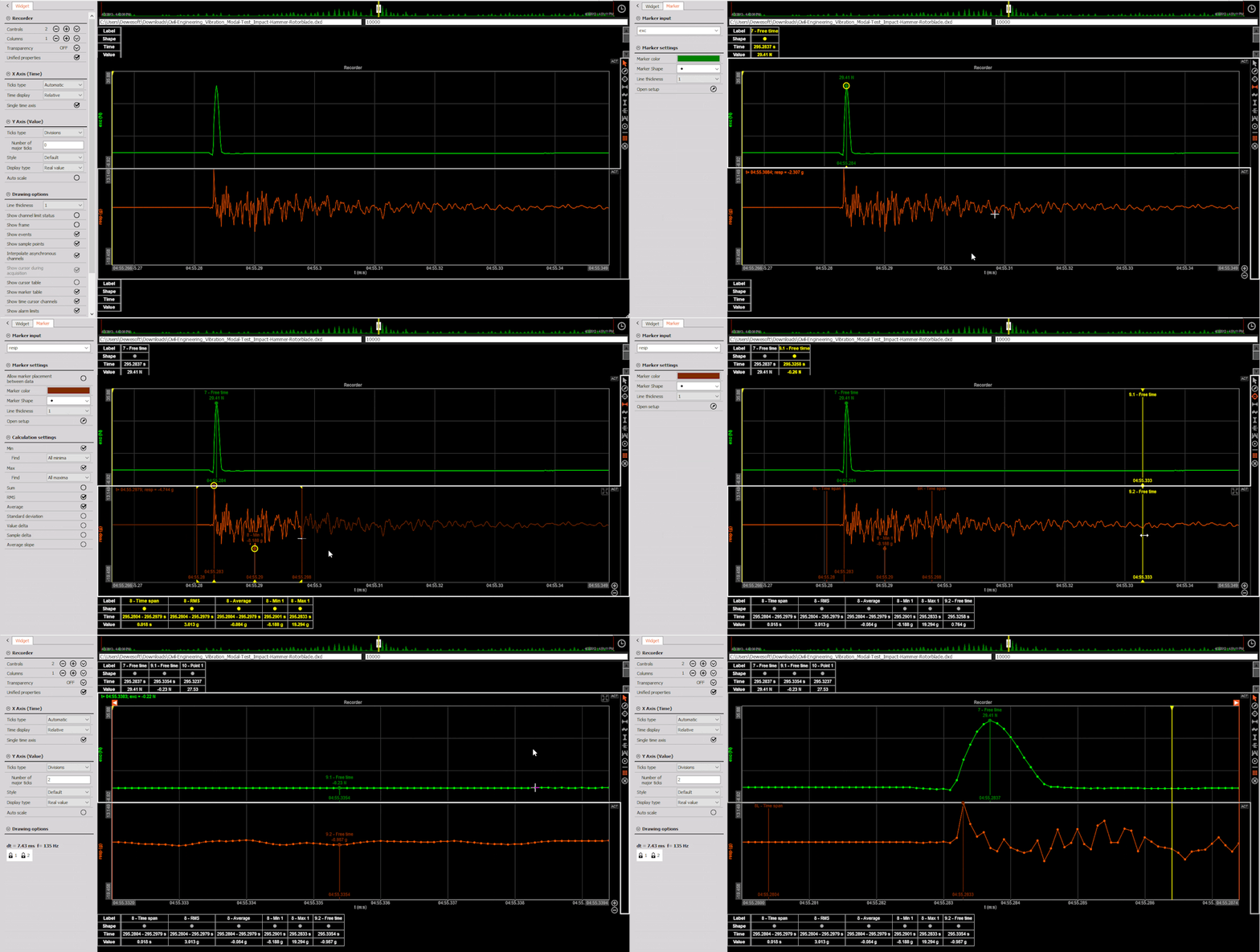
When working with time-domain measurements, it’s often essential to gain detailed insights directly from your recorded data. In this version, you’ll discover Processing Markers on the Recorder widget, designed to make data analysis and reporting faster and more intuitive.
Open a data file, focus on the Recorder widget, and explore the marker toolbar on the right. Simply select a marker and place it onto the Recorder. You can choose from the following options:
Free Marker – Place it on any data point (or between points) to read the exact value and time position.
Time Region Marker – Select a time range to calculate RMS, Average, Minimum, Maximum, and more. Find all available calculations in the left settings.
Trigger Marker – Create a value-based trigger to see when your data crosses a defined threshold.
Value Region Marker – Calculate values within a defined region, with additional Limit calculations.
Point Marker – Place a marker anywhere on the recorder, even off the data curve, to get the interpolated value and time position.
Reference Marker – Select a time region and calculate relative positions, such as 10% and 90% of the data — ideal for rise-time or fall-time analysis.
Damping Marker – Calculate the damping factor of your signal directly on the recorder.
Zoomed to the wrong spot? No problem—just click the notice at the top to jump back to your marker. Need to compare channels? Add Free or Reference markers to multiple channels at once using CTRL, or across Recorder Groups with CTRL + ALT.
Order marker
Today, you can extract rotational-order components of, e.g., noise, current, and vibration precisely from measurements via the angle domain data using our Order analysis application module. Still, we got multiple requests also to support order extraction from frequency domain data, and this is now possible using the Order marker:


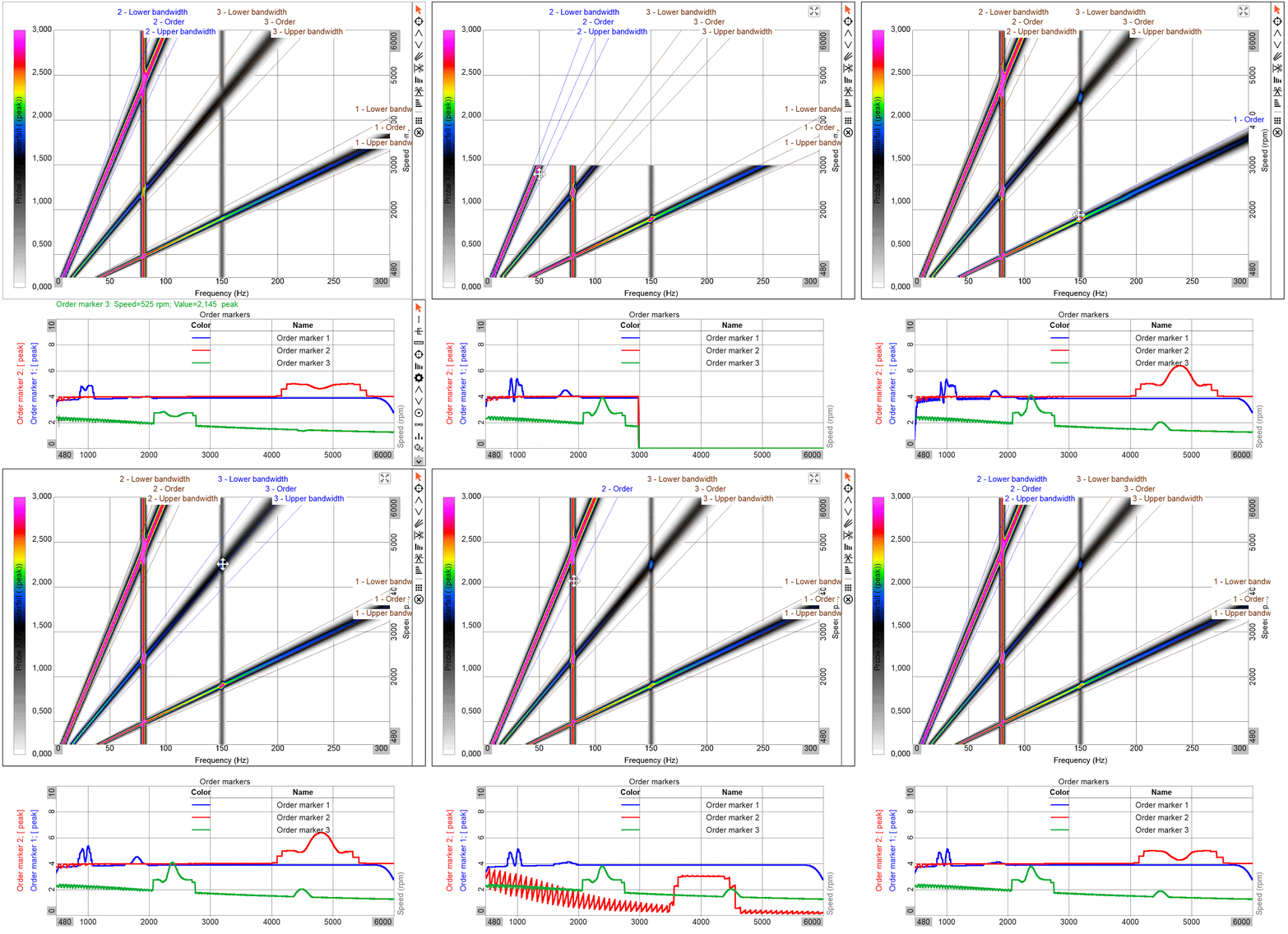
The Order marker determines order magnitudes based on an adjustable frequency width across speeds. The result is a vector of order magnitudes vs. speed, to be visualized, e.g., in a 2D graph widget. You can select the order marker on 3D graph widgets for frequency waterfall vs. speed data, e.g., coming from Order analysis or Orbit analysis. You can adjust the calculation bandwidth of the order maker with either fixed frequency width or fixed order width, to accommodate most applications:
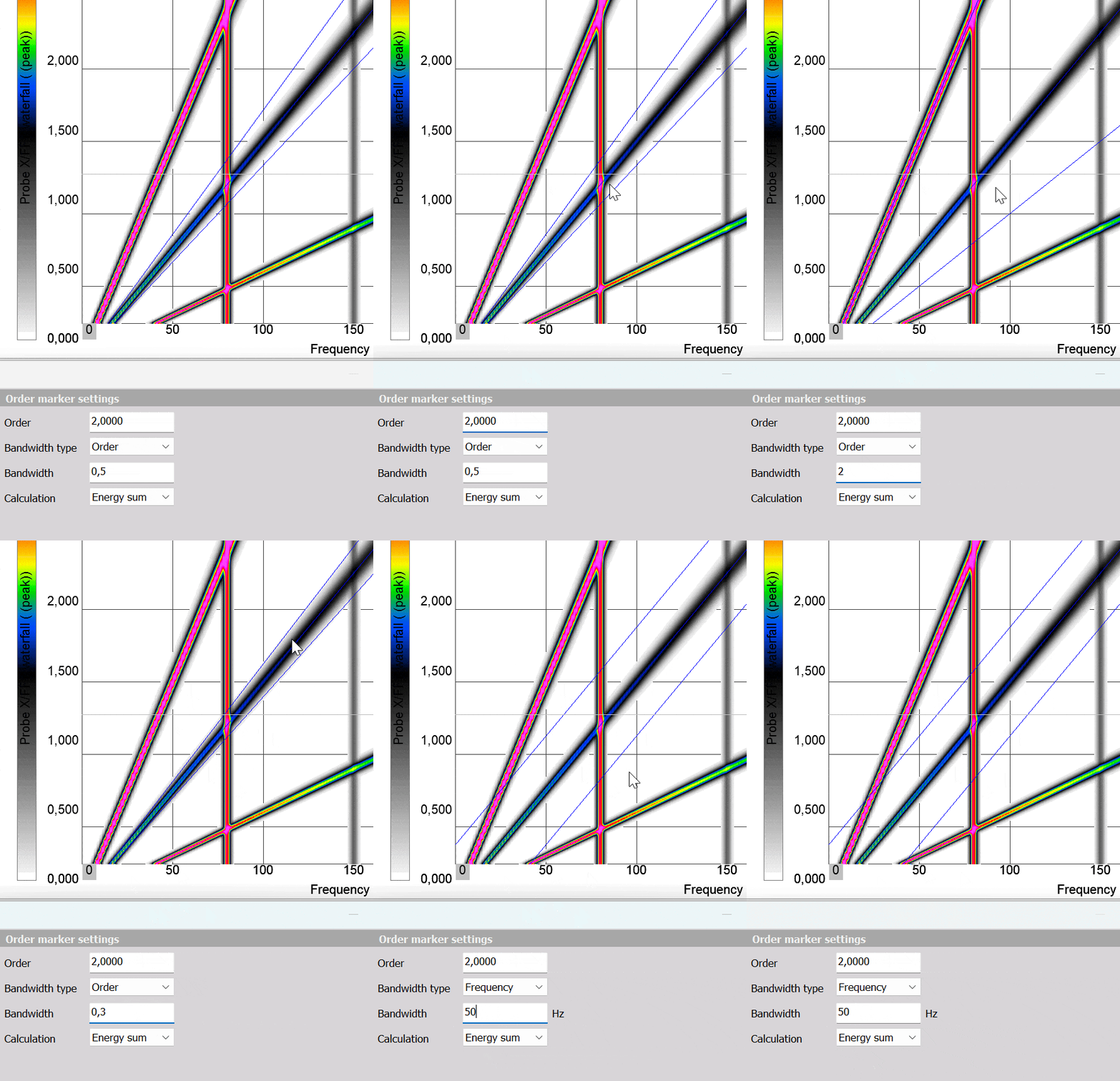
The default calculation type is the Energy sum of the selected bandwidth, but you can also set it to the maximum value within that bandwidth. You can add as many order maker channels as desired. Each marker will be available as derived order vs speed marker channels for further analysis. Each Order marker can be moved around directly on the 3D plot without having to enter the marker editor, just click and drag the center order trace line:
Setup revision
You can now create revisions of your existing setups – making navigation easier and setup management more transparent. Revisions let you quickly return to previous versions, which is especially useful when testing or fine-tuning advanced math operations.
In the Channel Setup, you can now change the default Save as action to Save revision. Each time you save a revision, a pop-up lets you add a short note describing your changes. Edits saved without creating a revision are stored in a working copy, allowing you to continue modifying them before finalizing.
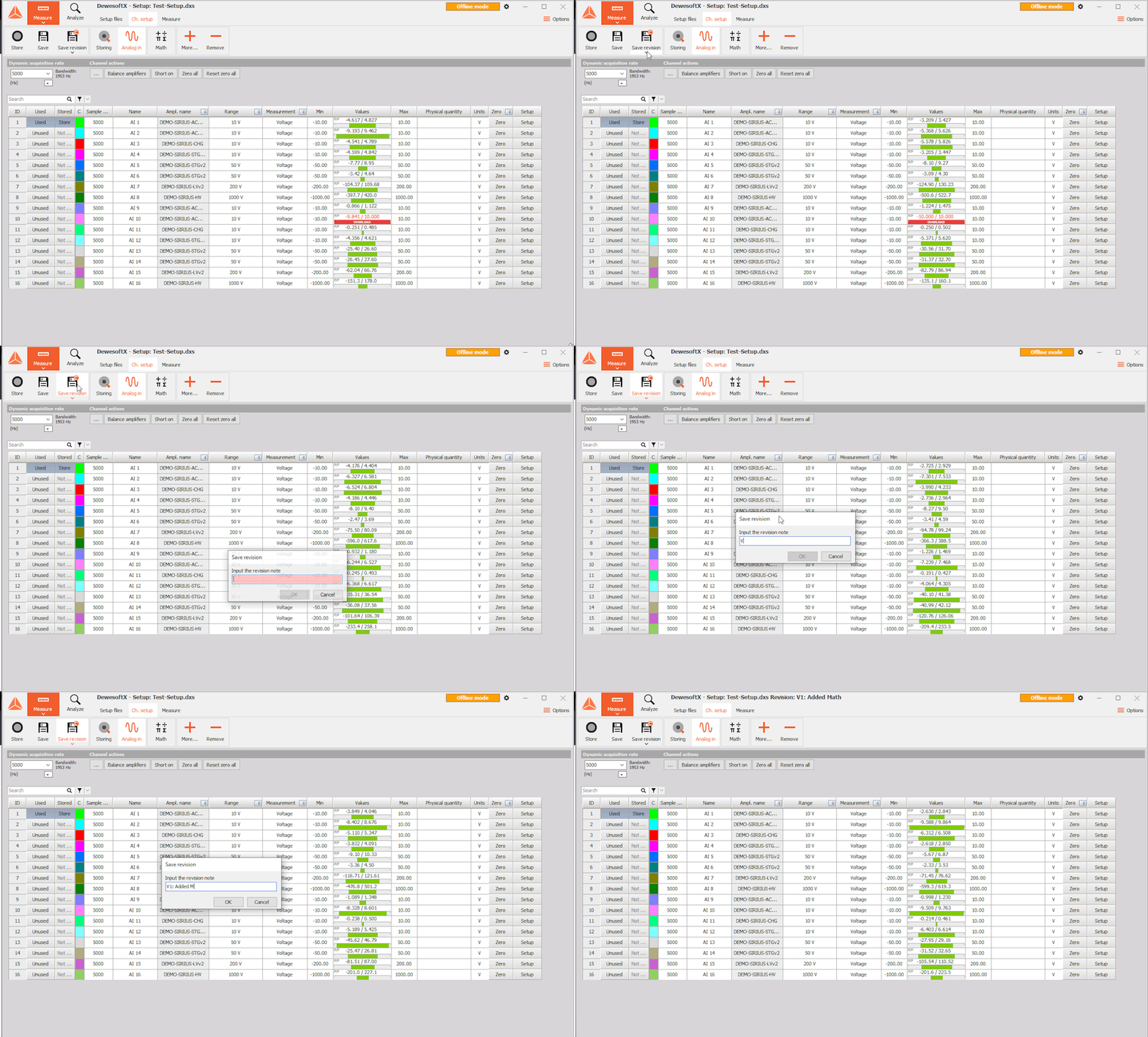
The Setup list now displays all available revisions for each setup file. You can easily expand, view, edit, and open any revision — perfect for reviewing older configurations or building on a stable version.


Video engine improvements
In this version, we are introducing a completely new video engine that brings several powerful upgrades. One of the most notable additions is support for optional GPU-accelerated video decoding, which delivers significantly smoother playback and a far more responsive user experience. We have also added support for H.265 decoding, allowing DewesoftX to work with a broader range of modern cameras and video sources.
Improvements to IP camera handling are another major highlight. You can now monitor multiple IP camera streams simultaneously, making it much easier to manage larger and more complex applications. In addition, DewesoftX will automatically reconnect to IP camera sources if a disconnection occurs, removing the need for manual intervention and ensuring a more reliable measurement workflow overall.


Phantom camera support
In DewesoftX 2025.3, we added the Phantom cameras plugin to expand the supported high-speed camera portfolio. Now you can connect Phantom high-speed cameras directly to your measurement setup and record ultra-high-speed video perfectly aligned with all your other signals.
The Phantom plugin gives you one timeline for everything: video, analog, digital, CAN, and more. That means you can finally see what happens at the exact sample where a force spike, vibration peak, or switching event occurs. As video and measurement data share the same timeline, there’s no more post-aligning frames to sensor channels – DewesoftX handles synchronization for you.
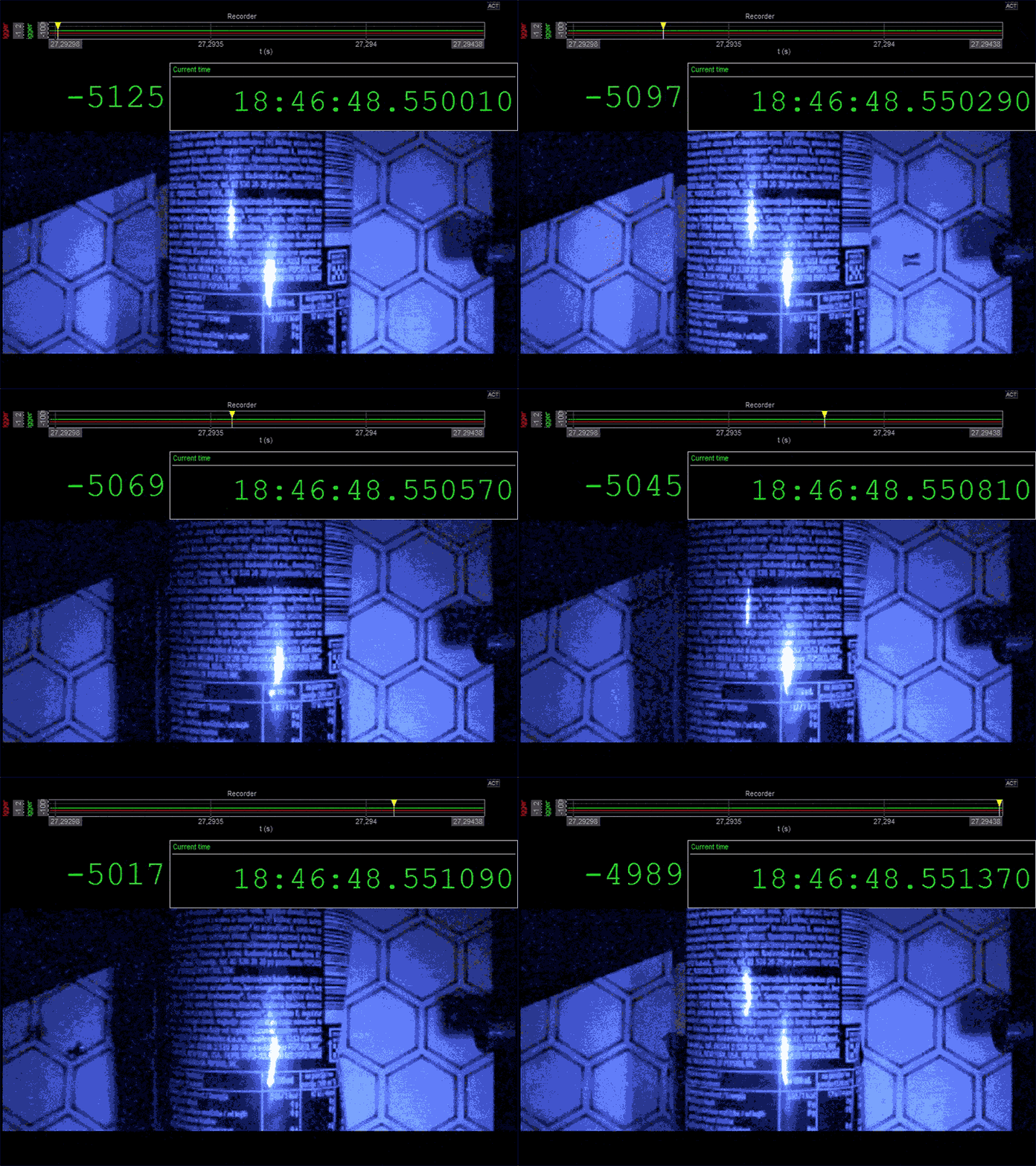
Internal and external triggering options let you reliably capture short, critical events without filling your storage with useless footage, so you get the right data at the right time.
These key features turn Phantom cameras into a powerful tool for demanding test scenarios such as impact and crash testing, drop testing, high-speed motion analysis, and power electronics switching. Engineers can correlate what they measure with what they see, speeding up root-cause analysis and making it much easier to understand fast transients, deformations, or failures in detail.
High-end GNSS receiver
With DewesoftX 2025.3, our systems gain native support for the Septentrio mosaic-X5 high-end GNSS receiver. The receiver supports all GNSS constellations, RTK, and multi-frequency operation, and has low power consumption, making it a perfect fit for embedded systems. For all these reasons, it is now in OBSIDIAN R8w, OBSIDIAN R12, and SBOXe. This feature turns Dewesoft DAQ systems into precise positioning and timing references, not just signal recorders.
We have fully integrated Mosaic-X5: position, speed, heading, and precise time are acquired just like any other Dewesoft channel and perfectly synchronized with your analog, digital, CAN, video, or Ethernet data. This integration means that a single dataset tells you precisely what happened, where, and when.
The new high-end receiver natively supports RTK, allowing you to use Obsidian devices as RTK rovers and opening new possibilities for use. Nevertheless, you can still use SBOX as a rover or base station (static/moving).


We have moved the receiver's functionality setup from hardware settings to the Channel setup, where you define how you intend to use the receiver. You can select different operation filters, such as motorsport, car, or plane, and configure the RTK functionality. That means the receiver’s settings are uploaded or can be unique to each setup.
This change fully equips Dewesoft DAQ for applications where precise trajectory and timing are essential, such as vehicle dynamics, ADAS testing, motorsport applications, road-load and durability campaigns, autonomous vehicle validation, and railway testing.
Your DAQ devices just leveled up with openDAQ support
Starting with DewesoftX 2025.3, the firmware for our latest DAQ platforms now includes native openDAQ support. This means that SIRIUS-XHS, OBSIDIAN, SIRIUS-X, and IOLITE-X devices all ship with openDAQ-compatible firmware out of the box.
With native openDAQ firmware, all these devices can now be accessed and controlled directly through the openDAQ API, enabling unified data streaming, standardized configuration workflows, and seamless integration into modern automation, testing, and processing pipelines.
What else is new?
You will find additional details about all features listed below on Dewesoft’s Engineering Support Portal:
New Campbell plot.
Marker table update.
Motor Analysis on GPU.
Improved re-calculation performance.
HBV (Human Body Vibration) setup illustrations.
Simplified workflow for sound power post-processing.
Static order tracelines for Frequency vs speed data in the 3D graph widget.
Box zoom for 3D graph.
Option to enter Export name instead of export index in the DataExport function (DCOM & sequencer).
You can save your display configuration as a template and reuse it in another setup.
'Total average' outputs implemented in CEA.
You can now adjust line thickness on the Modal geometry widget.
DewesoftX 2025.3 is a free upgrade for all Dewesoft customers and is compatible with all Dewesoft data acquisition systems. Download the upgrade from our download center, where you will also find a changelog listing all the minor improvements and bug fixes.