




Using Optris Thermal Cameras with Dewesoft DAQ Systems for Synchronized Temperature Measurement

December 29, 2025
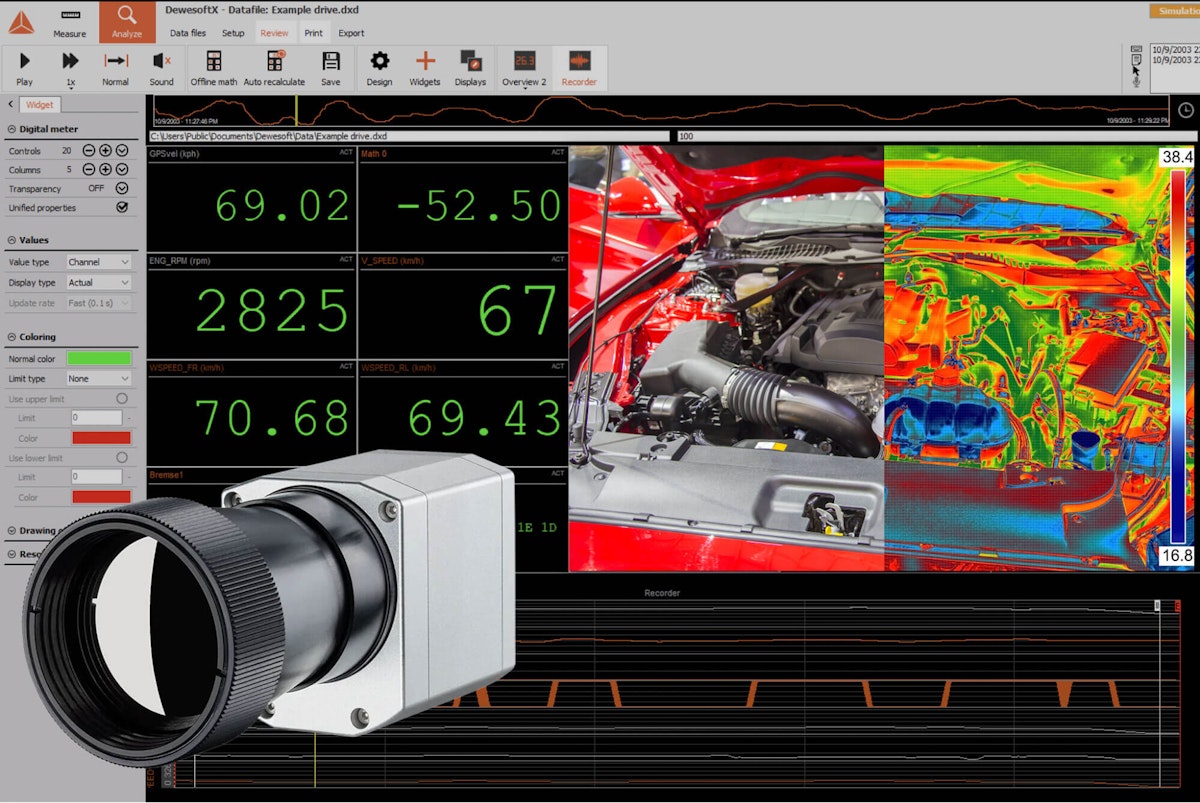
Overview: thermal imaging in modern data acquisition
Thermal imaging has become an essential tool in engineering, validation, and R&D. It enables you to capture real-time temperature changes that conventional sensors alone cannot detect.
DewesoftX (DSX) data acquisition software integrates directly with Optris thermal cameras. It allows users to record thermal images and temperature channels synchronously with analog, digital, CAN, GPS, inertial, and other data sources.
This capability provides a complete, high-resolution thermal and mechanical picture of any test article, from automotive powertrains to electronics and high-energy components.
Compatible Optris cameras
DewesoftX supports the following Optris cameras through a dedicated plugin:
Optris PI series (PI 640, PI 400, PI 1M, PI 05M, PI 08M)
Optris Xi series (Xi 80, Xi 400)
Important: Only PI and Xi series devices with USB interfaces are compatible with the Dewesoft Optris plugin. Always verify compatibility before purchasing hardware.


Initial setup and software requirements
Install PIX connect
Download and install PIX Connect from the Optris website. This package includes essential drivers and SDK components needed for DewesoftX software communication. Full setup instructions are available in the Dewesoft manual.
NOTE: PIX Connect is not needed for live viewing once DewesoftX is set up. It’s only for initial configuration, firmware updates, and verification. Close PIX Connect completely before running DewesoftX, as they cannot access the camera simultaneously.
Installing the Optris plugin in DewesoftX
Download the Optris plugin found on Dewesoft’s plugin page, then follow these steps:
1. Open DewesoftX and navigate to Options → Settings → Extensions.
2. Enable the Optris Plugin from the extension list.
3. Connect your Optris thermal camera via USB; Windows will automatically install the driver.
4. Add the camera as a device under Settings.
Configuring Optris cameras in DewesoftX
Channel setup
After enabling the plugin, go to Channel Setup → Optris. Your connected camera will appear with full access to:
Temperature ranges supported by the model
Frame rate settings
Color palette selections (iron, rainbow, grayscale, and more)
Measured Areas, allowing average, minimum, and maximum temperature extraction


Camera resolution, calibration, and environmental parameters
Key parameters include:
Temperature Range: Defines calibrated measurement span (e.g., −20°C to 100°C or extended mode).
Emissivity & Transmissivity: Critical for accurate readings and must match the surface properties of the test object.
Ambient Temperature Adjustments: Overrides default values when environmental conditions vary.
The Storing section lets you define whether DSX stores raw thermal frames or processed numerical data and specifies the frame logging rate.
Auto-calibration and shutter (“flag”) control
The plugin controls the camera’s internal calibration shutter:
Auto mode ensures consistent, hands-off calibration.
Manual mode is helpful in time-critical tests when predictable shutter timing is required.
Calibration can be triggered via a DAQ trigger channel, with an adjustable trigger value and interval.
The bottom of the panel features a Focus slider for precise optical tuning.
Defining measured areas for temperature channels

Each Measured Area creates an independent temperature channel in DewesoftX. Users can define up to 25 areas (or more if needed) of varying shapes and sizes for detailed temperature mapping. DewesoftX then logs:
Minimum temperature
Maximum temperature
Average temperature
These thermal channels synchronize perfectly with other DAQ inputs.
Application example: BMW XM engine heating cycle
To demonstrate the integrated workflow, a thermal test was performed on the Dewesoft BMW XM demonstration vehicle.
Camera model: Optris Xi 400
The Xi 400 is ideal for fast-changing thermal events due to its high frame rate and robust resolution:
Resolution: 382 × 288
Frame Rate: Up to 80 Hz (depending on mode)
Lens Options: Multiple fields of view available
Test setup
Camera positioned 1–1.5 m in front of the engine bay.
The field of view was configured to capture the top block and intake.
Thermocouples placed throughout the engine bay and logged via KRYPTON 16xTH.
Synchronized with CAN bus data for coolant temperature and RPM.
The Optris camera was connected to the PC via USB.
Configuration in DewesoftX
Live preview enabled for focus and framing.
“Iron palette” was selected for clear visualization of heat distribution.
Measured Area defined over the top engine block.
Recording process
Logging began before ignition to capture the ambient baseline.
The engine was cycled through idle and several revs.
Observed temperature behaviors:
Manifold temperatures spike rapidly
The engine block warms gradually
Radiator heating lags, aligning with coolant flow dynamics
Post-processing
The thermal video and numerical temperature channels were synchronized with:
RPM
CAN coolant temperature
Thermocouple readings
Other vehicle sensors
This setup provided a complete thermal-mechanical profile of the engine heating cycle.
Tips for optimal thermal measurement accuracy
Focus carefully using the lens or software tools before recording.
Set emissivity correctly for the material (e.g., painted metal ~0.95, polished aluminum lower).
Avoid reflections from sunlight or shiny surfaces that distort temperature readings.
Synchronize everything: Dewesoft’s advantage is the ability to combine thermal, analog, digital, CAN, GPS, power, audio, and video signals in perfect time alignment.
Summary
Integrating Optris thermal cameras with DewesoftX provides a powerful thermal measurement workflow for automotive testing, electronics evaluation, environmental chambers, aerospace components, and other thermal-intensive applications. The Optris plugin enables:
Real-time thermal imaging
High-speed temperature channel extraction
Full synchronization with all other DAQ domains
In the BMW XM engine warm-up example, the Optris Xi 400 camera captured fast transient temperature changes that conventional sensors alone cannot visualize. The combination of thermal video, numerical temperature channels, CAN data, and thermocouples produced a comprehensive thermal model of the engine’s behavior.
